Tech
How to Prepare Your Files for Professional Printing

Understanding File Formats
Preparing your files correctly is essential for achieving a high-quality printed product. One of the first steps is to select an appropriate file format. Printers commonly prefer PDF files because they preserve fonts, images, and layouts across different devices and software platforms. Other industry-standard formats include TIFF for high-resolution raster images and EPS for vector-based designs. Choosing the best format ensures your design elements remain intact without unexpected shifts or losses during the printing process. If you need guidance on your project, reputable providers like MidAmerican Printing Systems can help clarify specifications for the best results.
Consistency and quality are paramount when selecting formats, as these determine how your artwork appears when printed. For example, using a PDF with embedded images and fonts prevents last-minute surprises or printing mishaps. Always review your print provider’s specifications before exporting your file to ensure you use the optimal format for their equipment.
Setting the Correct Color Mode
One of the most overlooked aspects of print file preparation is color mode. Computer screens display color using RGB (Red, Green, Blue), but printers use CMYK (Cyan, Magenta, Yellow, Black). Converting your files to the CMYK color model is necessary to achieve colors that accurately reflect your design intentions. Without this conversion, colors that appear vibrant onscreen might print flat, dull, or inaccurately. Most design software, such as Adobe Photoshop or Illustrator, allows easy conversion and soft-proofing of files using CMYK profiles.
Before you finalize your file, check every element, background, image, and illustration for RGB colors. Even a single RGB image can compromise the overall harmony of your printed piece.
Ensuring High Resolution
Resolution makes a critical difference in the quality of your printed materials. The standard for professional printing is 300 DPI (dots per inch). This ensures that text is crisp and images are clear. Files with lower resolutions can appear pixelated or blurry after printing, diminishing the professional quality of the finished piece. Stick to original, high-resolution photography and avoid using web-sourced images, as they typically have a resolution of only 72 DPI, which is sufficient for digital displays but not for print.
Incorporating Bleed and Safe Zones
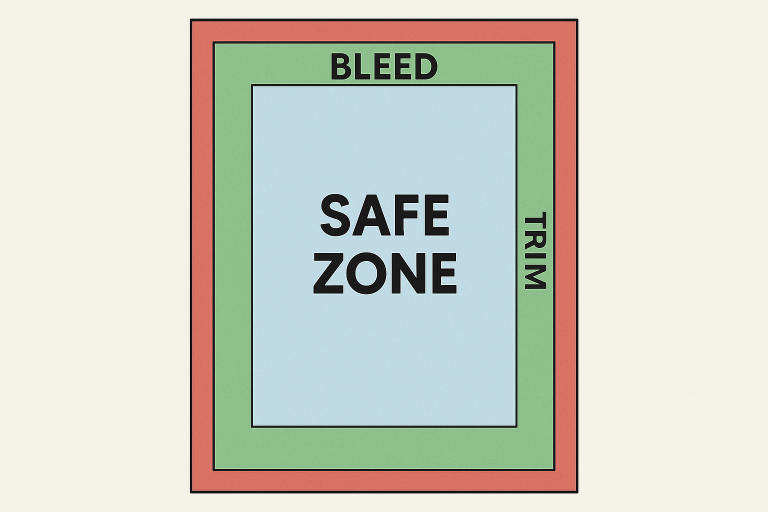
Professional printing requires precise cutting, so your design needs to be prepared with both bleed and safe zones. A bleed of at least 0.125 inches (3mm) allows your background or images to extend past the trim area, preventing unwanted white lines at the edge of the finished piece. A safe zone, on the other hand, keeps essential content such as text or logos at least 0.25 inches (6mm) inside the trim line so that nothing important is accidentally cut off. These design adjustments give you a margin for error and ensure your print job looks polished and intentional.

Embedding or Outlining Fonts
Font consistency across devices and printers cannot be assumed, as font licenses and availability vary. To keep your typography consistent and avoid fonts being replaced with defaults, you should always embed your fonts or convert all text to outlines (or ‘curves’). This step guarantees that your text appearance remains unchanged regardless of the printer’s font library. It also prevents errors that affect readability and brand identity. If you’re exporting a PDF, most design software provides options to embed fonts during this step.
Organizing Layers and Flattening Files
Organizing your document layers makes editing easier, but before submitting a final print file, flatten your design to a single layer. This process reduces file size and eliminates the possibility that elements will unintentionally shift or become invisible if the printer’s software misreads your file structure. Be sure to keep an editable copy of your layered source file for potential future revisions, but only submit flattened files to your print partner to minimize errors and confusion.
Conducting a Preflight Check
Before you send your file to the printer, invest time in a thorough preflight check. Review your documents for missing links or images, incorrect color modes, misplaced bleeds, and missing or unembedded fonts. Many print providers can run their own preflight checks, but addressing these issues on your end saves time, reduces proofing rounds, and keeps your project on schedule.
Communicating with Your Printer
Open communication with your print provider is indispensable for a smooth project. Discuss their preferred file formats, color settings, bleed specifications, and any additional requirements. If your project is complex, provide mock-ups or digital proofs to clarify your expectations. Consulting early and often reduces the risk of errors and ensures your print job matches your vision.
By following these best practices, you significantly improve the chances that your printed materials will look sharp, professional, and true to your creative vision. Proper preparation also saves time and money by preventing mistakes that could require costly reprints.